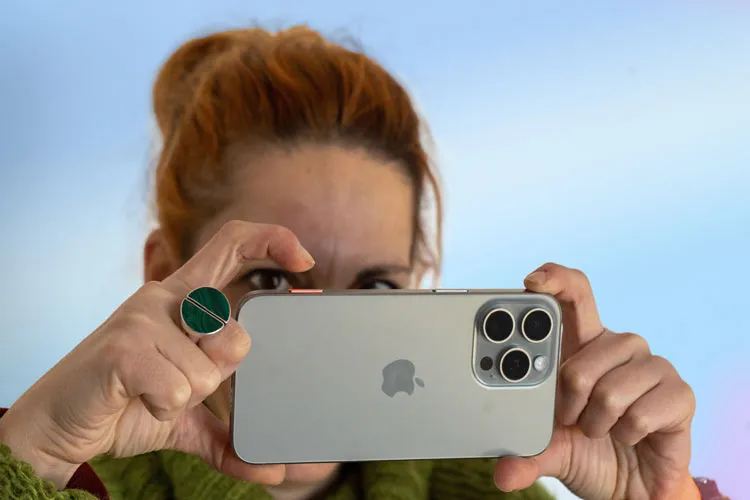
When the iPhone entered the market in 2007, few probably imagined this phone would one day become part of the professional photography process. Despite many users' interest in photography, smartphone cameras at that time had not yet reached a position to compete with dedicated cameras. Still, the iPhone quickly made mobile photography a popular pastime, and its easy portability meant the camera was always available to users.
Today the camera system is one of the main reasons many users choose an iPhone. The iPhone Camera app has many features, but some of these are located in software settings and may be easily hidden from users' view. Features like Photographic Styles, manual exposure and focus control, and macro photography settings can give the user more control over the final result of a photo.
Below are five lesser-known iPhone camera settings that can be useful for photographers of varying experience levels.
Photographic Styles
Photographic Styles are one of the powerful tools of the iPhone camera, especially for users who prefer to edit photos without post-processing after capture. Many users are familiar with the iPhone camera filters, but filters merely apply a set of effects to the final image.
Photographic Styles differ importantly from filters; this feature adjusts certain image characteristics during capture and allows for a more personalized output. As a result, the user can adjust the look of colors, image tone, and some other photo properties before taking the shot.
Accessing this feature may be difficult for some users, especially if they use RAW images. RAW format is designed for editing photos in post-production with software like Adobe Lightroom and is not compatible with Photographic Styles. In fact, the Photographic Styles option in the Camera app is only shown when the high-efficiency capture mode is enabled.
This format is the same HEIF that on some iPhone models can be selected from the top of the Camera app and on other models from Settings > Camera > Formats in the Settings app.
Photographic Styles have been available since the iPhone 13, but newer models offer more capabilities in this area. With the release of the iPhone 16, it became possible to adjust Photographic Styles through the Photos app as well. Available styles include Standard, Cool Warm, Vibrant, Rich Contrast, and Dramatic, and their various settings can be changed and saved for use in future photos.
Macro Control
Macro Control is not necessarily a feature that is hard to find, but managing how it behaves can be challenging for some users. Macro photography involves capturing images at a very close distance of small objects and can create a different perspective.
The iPhone also offers macro photography via the ultra-wide lens. The automatic activation of this feature, while useful in many cases, can sometimes cause sudden changes in exposure and depth of field when shooting.
This happens when the iPhone automatically detects conditions suitable for macro mode and switches the camera to that mode.
To manage this feature, go to Settings > Camera > Macro Control. The user can completely disable Macro Control or handle it manually when needed.
If Macro Control is enabled, when the iPhone detects suitable conditions for macro photography, a flower icon appears in the Camera app. If the user does not need this mode, they can tap the icon to disable it.
AE/AF Lock
The iPhone's auto exposure and auto focus system performs well in many situations, but sometimes reframing can cause the phone to readjust exposure and focus. This issue can be particularly unhelpful in low-light conditions.
The AE/AF Lock feature is designed for such situations. This feature is in the camera user interface and may receive less attention because of its simple appearance.
When composing a photo, a yellow square appears on the screen indicating the point the iPhone has chosen for focus and exposure. The user can change this point by tapping the screen. By tapping and holding the screen, the camera not only sets focus and exposure but also locks them.
After this feature is activated, the yellow AE/AF Lock label appears on the screen indicating that focus and exposure are locked.
On the iPhone 16 and iPhone 17 models, this feature can also be activated via the camera control button. By pressing and holding this button, AE/AF Lock is enabled, and releasing it returns the settings to their default state.
File Format Settings
Choosing the file format is one of those settings that can be confusing for iPhone users. By default, the iPhone captures images in High Efficiency mode and saves photos in HEIF format. For many users, this format is appropriate and does not need to be changed.
However, users who need greater compatibility of photos with various software and devices can use JPEG format. JPEG is an older format but remains widely used in photography. Its compression is higher compared to HEIF and can affect image quality.
To change the format, go to Settings > Camera > Formats. In this section the High Efficiency option and the Most Compatible option are available. The latter is used to capture images in JPEG format.
On iPhone Pro models, a third option called Apple ProRAW also exists. This option is designed for photographers who want more control over the editing process and to process images after capture in software like Adobe Lightroom, VSCO, or even Apple's Photos app.
Some iPhone Pro models also provide the option to select the capture format via a button at the top of the Camera app UI.
Prioritize Faster Shooting
The iPhone can be very useful for photographing moving subjects and fleeting moments. In street photography or when capturing everyday moments, speed matters and sometimes there are only a few moments to capture a suitable image.
The Prioritize Faster Shooting feature is enabled by default, but some users may disable it when changing camera settings without fully understanding its function.
When this feature is enabled, the iPhone changes how it processes images so the camera system can take more photos in a short period. This feature is especially useful when repeatedly pressing the shutter button and increases the likelihood of capturing the desired moment.
To enable or disable this feature, go to Settings > Camera > Prioritize Faster Shooting.