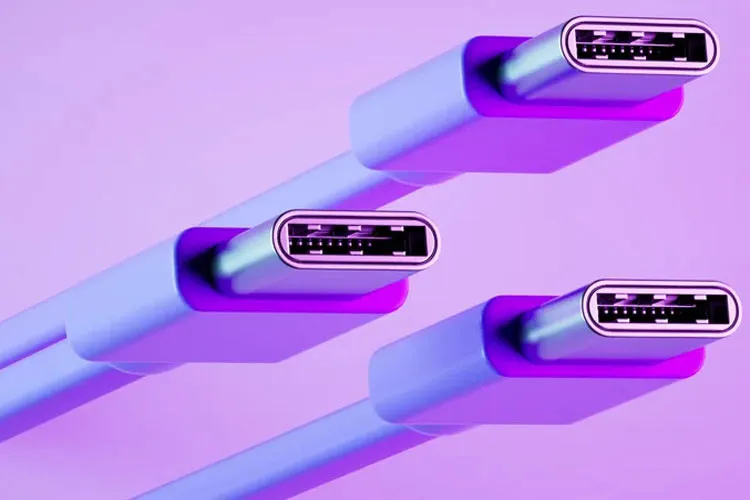
The Universal Serial Bus or USB has become one of the most common connection interfaces in the tech world over the past three decades. Today this standard is used in computers, smartphones, smart TVs, peripherals, and many electronic products; but the ports’ similar appearance does not mean they all perform the same.
Since the first USB version was released in 1996, different generations of this standard have been introduced with dramatic increases in data transfer speeds and support for new capabilities. Based on specifications available up to September 2026, USB4 Version 2.0, also known as USB 80Gbps, is the fastest USB standard.
USB4 Version 2.0 was introduced in 2022 and, unlike older generations, works only with the USB Type-C connector. This standard can provide bidirectional data transfer speeds up to 80 gigabits per second and, in addition to data transfer, can also provide power delivery, video signal transmission, and PCI Express (PCIe) traffic if enabled by the manufacturer.
One of the interesting features of USB4 Version 2.0 is the ability to offer asymmetric bandwidth. When using high-resolution displays, this standard can transfer up to 120 gigabits per second in one direction while maintaining 40 gigabits per second for the opposite direction. This standard is also compatible with DisplayPort 2.1.
However, achieving the stated maximum USB speed depends on all components in the connection chain. For example, if you connect a USB4 Version 2.0 flash drive to a laptop, both the drive and the device port must support the 80 gigabits per second speed. Otherwise, the connection speed will be limited to the weaker capability. The operating system can also affect actual transfer speed in some cases.
What speeds do older USB generations have?
USB4 Version 1.0, introduced in 2019, is still more common in many new devices than USB4 Version 2.0. This standard also uses only USB-C and its maximum speed reaches 40 gigabits per second. However, 40 gigabits per second is an optional maximum for this standard, and USB4 Version 1.0 can also be offered with 20 gigabits per second bandwidth.
Prior to USB4, the USB 3.2 Gen 2x2 standard was introduced in 2017, offering data transfer speeds up to 20 gigabits per second and is also known as USB 20Gbps. This standard does not support PCIe, but can transmit DisplayPort signals with limitations.
Continuing in this family, USB 3.2 Gen 2, also known by older names USB 3.1 and USB 3.1 Gen 2, has a maximum speed of 10 gigabits per second. USB 3.2 Gen 1, also known as USB 3.0 and USB 3.1 Gen 1, is limited to 5 gigabits per second. These two standards can be used with Type-A, Type-B, Micro-B and Type-C connectors.
Lower on this list is USB 2.0 which, despite its age, is still seen in many devices and its maximum speed is only 480 megabits per second. This standard supports various connectors including Type-A, Type-B, Mini-A, Mini-B, Micro-A, Micro-B and Type-C. USB 1.0 and USB 1.1 were limited to 1.5 and 12 megabits per second respectively and are no longer actively used in today’s devices.
How do we identify the fastest USB port?
One way to identify a USB port’s capabilities is to check the symbol next to it. For example, the SS symbol next to the three-prong USB logo usually indicates SuperSpeed capability. If a number like 5 or 10 is also printed next to that symbol, it can indicate a nominal speed of 5 or 10 gigabits per second.
On some devices, a USB-C port is marked with a lightning bolt symbol indicating support for Thunderbolt. Of course Thunderbolt capabilities vary across generations, and the presence of this symbol alone does not indicate a single fixed speed.
The color of the inner part of USB Type-A ports can sometimes provide clues. Typically, black is associated with USB 2.0 and blue with USB 3.x. Other colors such as red, purple, or turquoise may also be used by different manufacturers to indicate faster capabilities; however, there is no standard, reliable color scheme across all makers.
Therefore, if the port’s symbol or color does not provide enough information, the most reliable way is to refer to the device’s official specifications or its user manual. Windows users can, in some cases, check information about USB controllers via Device Manager.
Finally, an important point is that USB-C by itself does not mean high speed. USB-C is only the connector type and can be used on ports with very different capabilities. To achieve maximum speed, you must check the specifications of the port, cable, and the connected device simultaneously.
The differences between USB generations and their multiple naming schemes are one of the main reasons for user confusion when choosing peripherals; therefore when buying a cable, drive, or USB device, paying attention to the exact standard name and the supported speed is more important than the connector’s appearance.