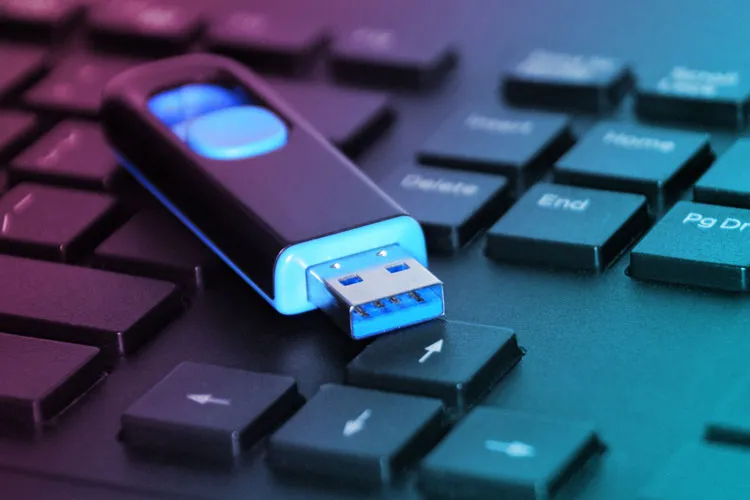
A USB flash drive may contain important and personal files that the user thinks are gone forever when deleted. However, before throwing the flash drive away or giving it to someone else, an important step must be taken to minimize the chance of data recovery.
When deleting a file from storage, in most cases the actual data is not immediately erased. The operating system only marks the space occupied by the file as available for new data.
As a result, specialized recovery tools may be able to restore files that were deleted long ago; provided that new data has not been written over the space they occupied.
This becomes more important when the flash drive contains personal photos, important documents, or sensitive information that the user does not want others to access. Therefore, simply selecting files and pressing Delete is not a reliable method for wiping data.
Full format; the first step to wiping a flash drive
Using a full format is one of the essential steps before discarding a flash drive or other storage units. Unlike a quick format, this method performs a more thorough clearing of the storage space and can include scanning sectors and overwriting existing data; making recovery more difficult.
However, when a higher level of assurance is needed, formatting alone is not sufficient. Experts recommend that healthy storage units intended for recycling be overwritten multiple times. Conversely, if a storage unit is to be permanently retired, physical destruction is a more reliable option.
Before starting the wiping process, you should first move all important files elsewhere and ensure you will no longer need the data on the flash drive.
Formatting a flash drive on Windows
On Windows, first connect the flash drive to the computer and open File Explorer. Then from the side menu go to This PC and find the flash drive under Devices and drives.
Right-click the flash drive and select Format. A window with a set of options will appear. Since your goal is to wipe the flash before discarding it, usually there is no need to change the default settings.
The most important point is that the Quick Format option is not enabled. Then click Start and allow the system to complete the format process. A full format may take longer than a quick format because it performs a more extensive process on the storage space.
Wiping a flash drive on Mac
Mac computers also provide the built-in tools needed to manage and wipe external storage devices and do not require additional software to do so.
After connecting the flash drive, open Finder and go to Applications. Then click Utilities and run Disk Utility.
In the sidebar, select the desired flash drive and click Erase. Depending on the type of storage unit and the macOS version, there may be additional security options to specify the number of times to overwrite data.
After selecting the appropriate settings, click Erase and wait for the wiping and formatting process to complete.
For highly sensitive data, physical destruction is more reliable
If the data stored on the flash drive is highly sensitive and you do not intend to reuse it, physical destruction can be the most reliable option. Even after a complete wipe, it cannot be guaranteed in all cases that recovery is impossible.
Specialized tools such as DBAN and ShredOS can also be used to overwrite data multiple times and make file recovery more difficult. However, for highly sensitive information, physically destroying the flash drive is the more reliable choice.
Difference between flash drives and hard disks in physical destruction
In traditional hard disk drives (HDDs), data is stored on internal platters and damaging these components can disrupt access to the information.
In contrast, flash drives and SSDs rely on memory chips mounted on the printed circuit board. Therefore, destroying them may require opening the casing, accessing the memory chips, and destroying them.
This should be done with great caution. Using a hammer, drill, or cutting tools can cause metal fragments or fine fibers and glass particles to fly and pose an injury risk. Therefore, physical destruction should not be performed without observing safety precautions.
Do not throw an old flash drive in regular trash
After wiping or destroying a flash drive, it is not recommended to dispose of it with regular trash. In many cases you can use electronic waste recycling programs, electronic stores that offer these services, or specialized electronic equipment recycling centers.
Ultimately, retiring an old flash drive is not limited to deleting its files. Protecting data begins with properly wiping it, and if the data is sensitive, physical destruction of the memory may also be necessary. Following these steps can reduce the risk of unauthorized access to the information stored on an old flash drive.